Outlook - Adding external meeting in Outlook calendar:
About:
This document explains how to add external meetings to your Outlook calendar on your device. External organizations sometimes send meeting invitations as .ics files, which are simple calendar file attachments. To add the meeting to your Outlook calendar, you must first download and save the .ics file, because Outlook cannot import the event until the file is stored on your computer. The Windows instructions are provided first, followed by the Mac tutorial below.

Windows:
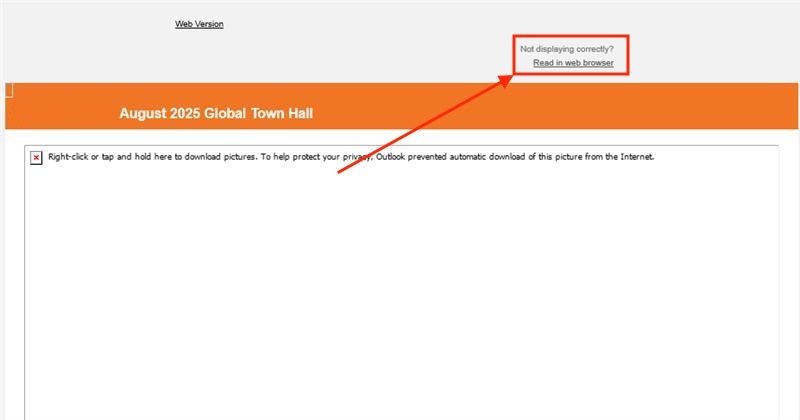
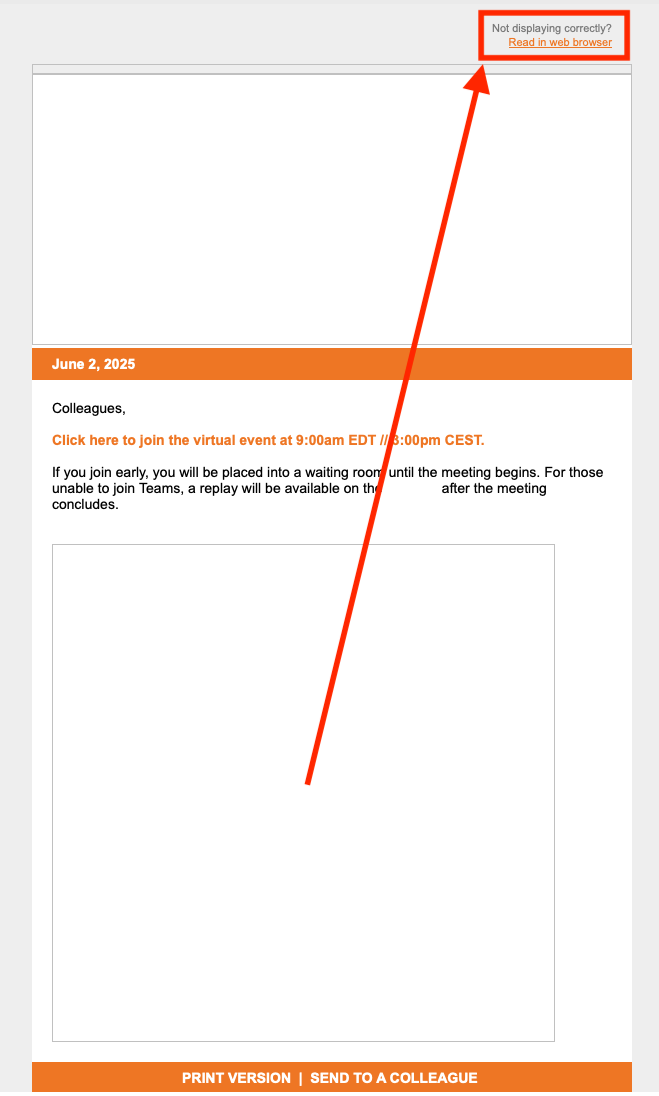
1, When receiving a email from externals, the emails can look like on of these two pictures. Either the entire image load, or it doesn't.
If the image doesn't load, you can always choose the option to view it as in the web browsers. Click the image.

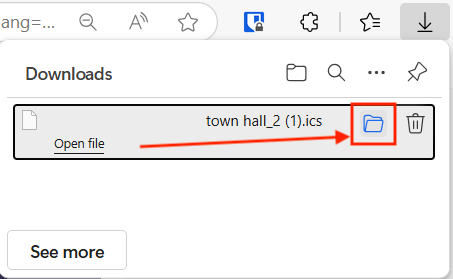
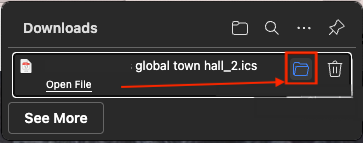
2, A file will download, and you will see a pop-up on your top right. Hover over the file, or click it, and a little folder will appear. Click the folder, do not click 'Open file'.
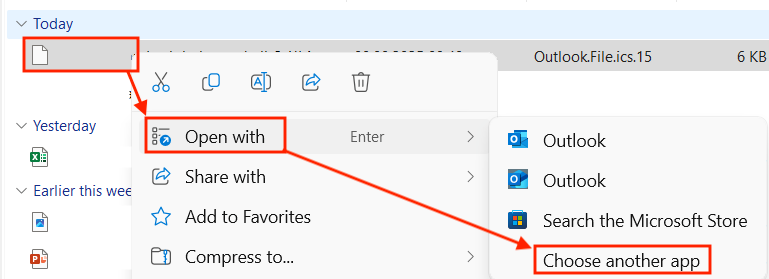
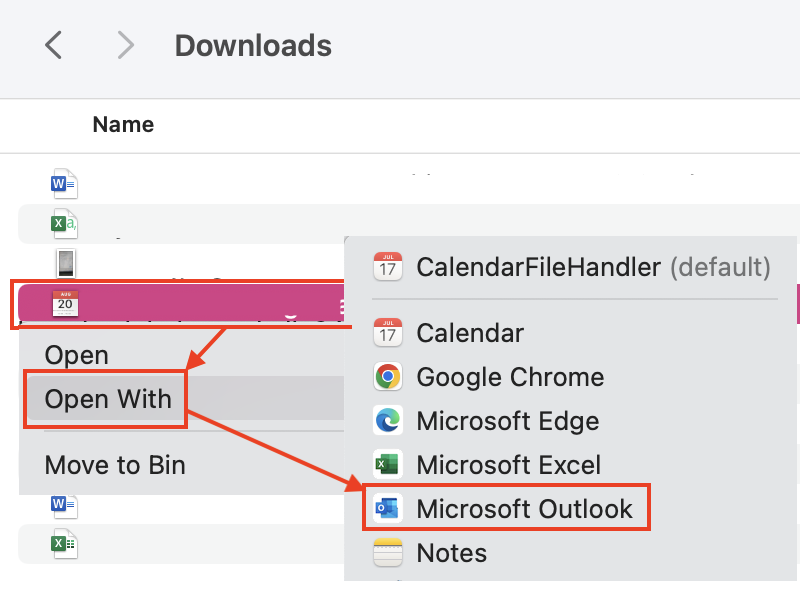
3, The folder will open, and the file will be highlighted. Right click the file, and choose the option Open with, and then Choose another app.
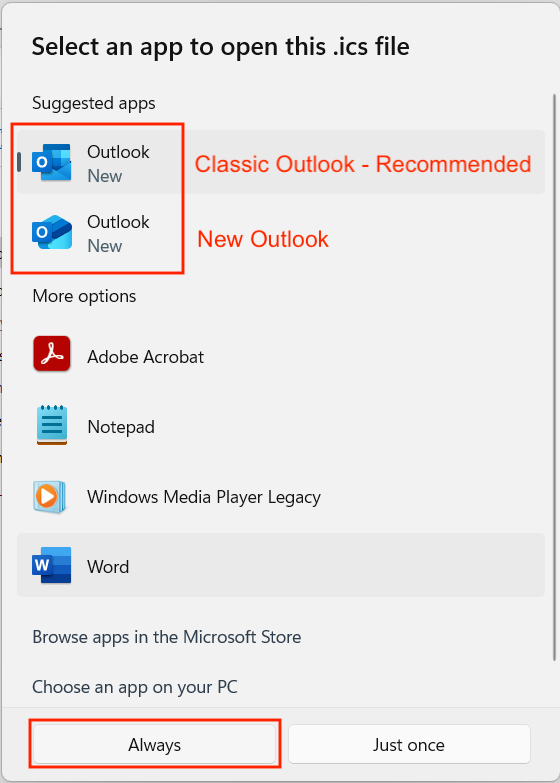
4, Then choose Outlook ( doesn't matter which one you choose, but I recommend the Classic), and then click Always.
5, A pop-up will appear. Click on Accept. Doesn't matter which one you choose.
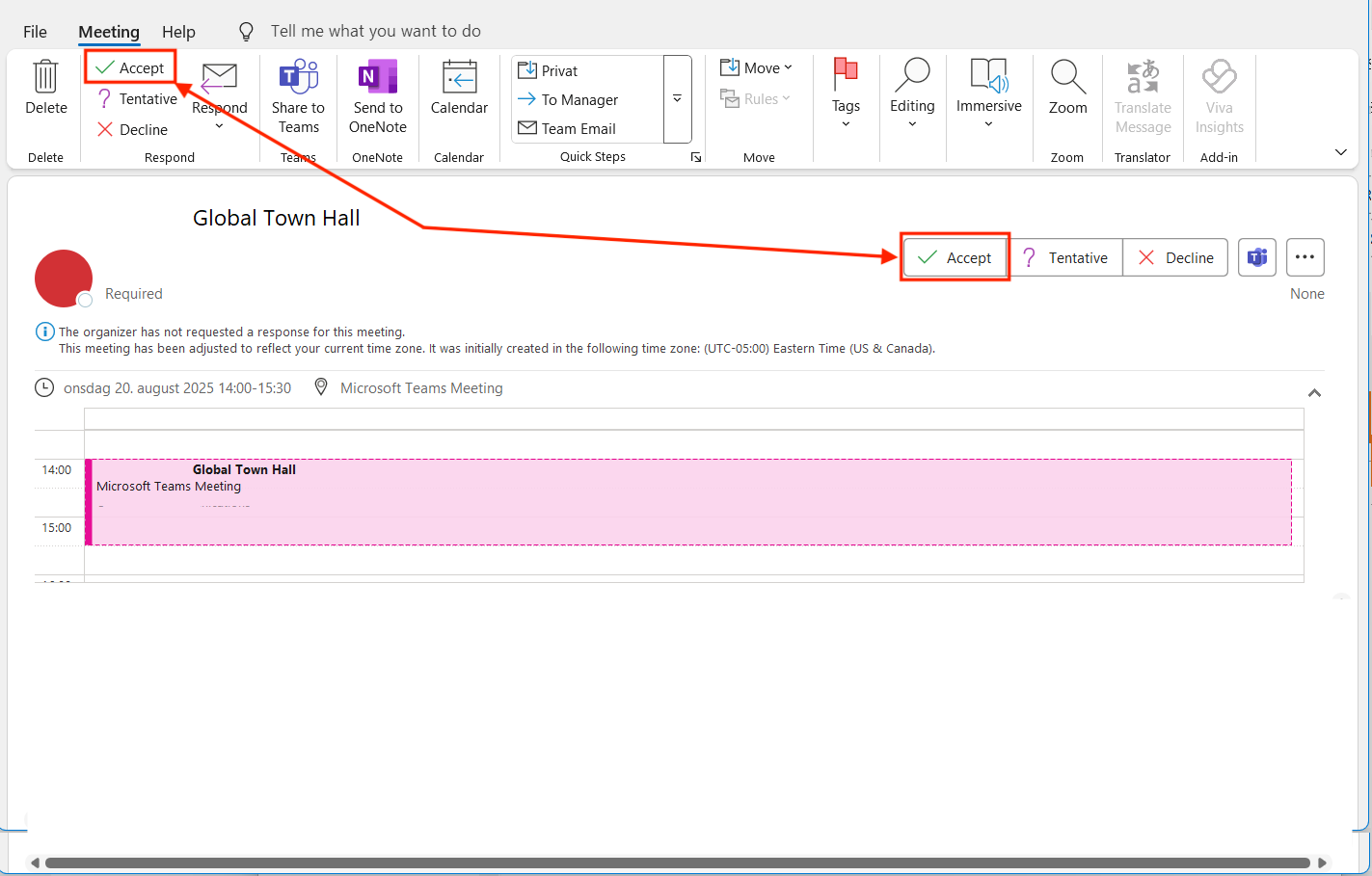
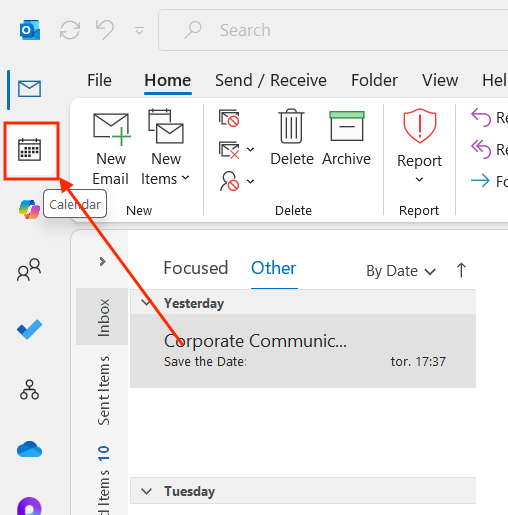
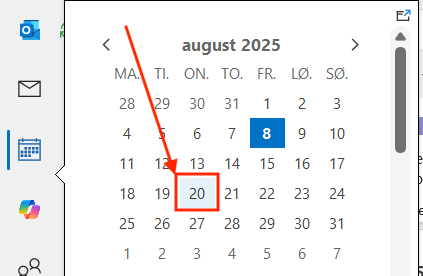
6, Go back to Outlook and confirm the meeting.

Mac:
1, When receiving an email from externals, the emails can look like one of these two pictures. Either the entire image load, or it doesn't. If the image doesn't load, you can always choose the option to view it as in the web browsers. Click the image.
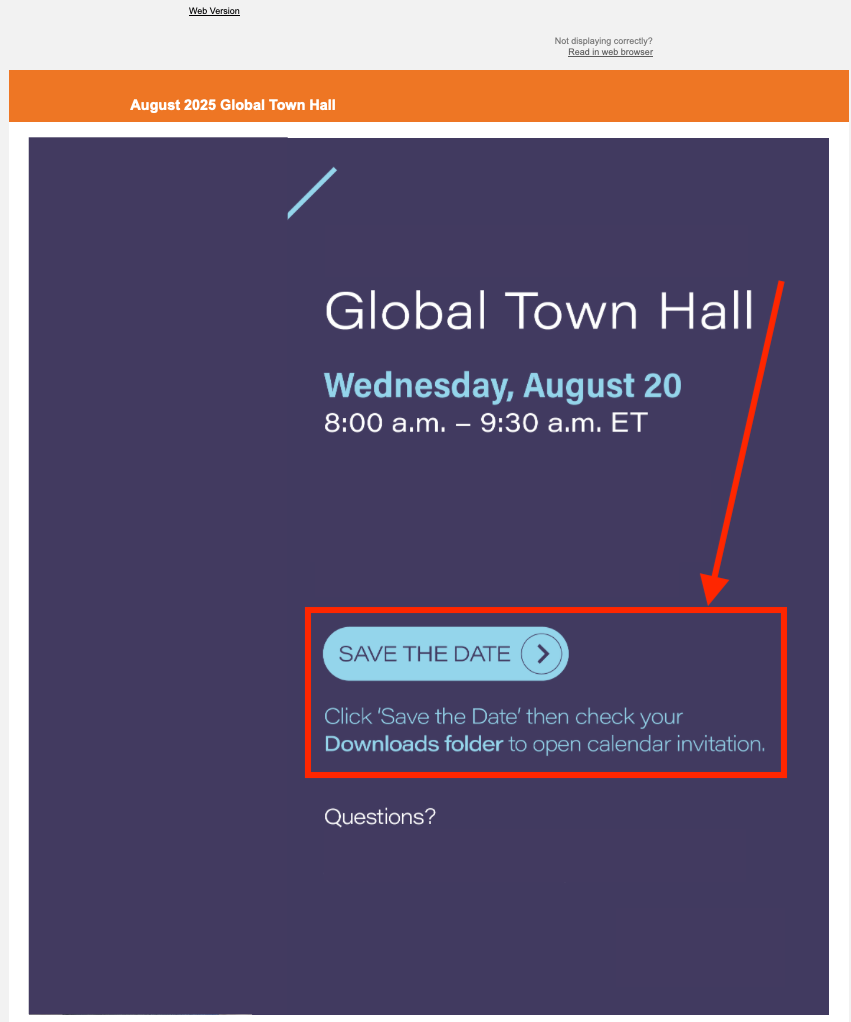
2, A file will download, and you will see a pop-up on your top right. Hover over the file and a little folder will appear. Click the folder, do not click 'Open file'.
3, The folder will open, and the file will be highlighted. Right click the file, and then choose Outlook (doesn't matter which one you choose, but I recommend the Classic), and then click Import.
4,
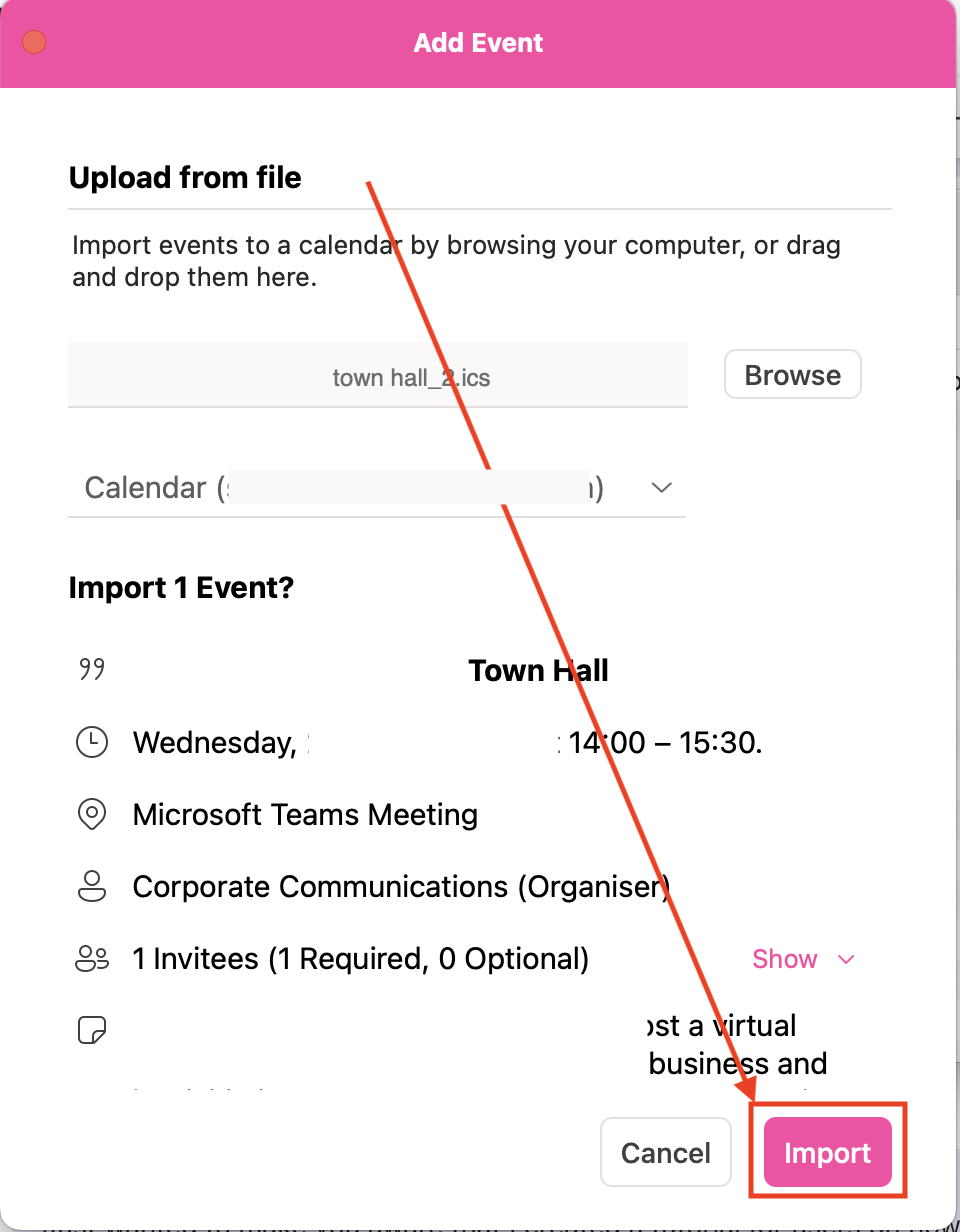

And you are done 😄